
Tips
How to Add ReadWriteBuild to Your Phone’s Home Screen
November 16, 2026
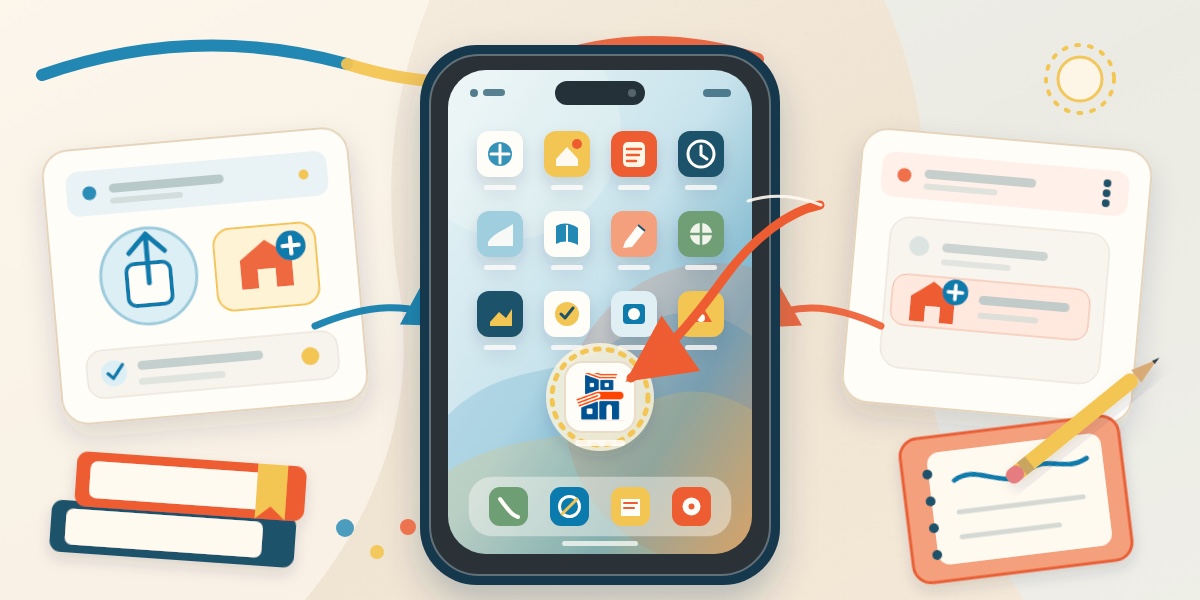
Make ReadWriteBuild one tap away. Follow these quick iPhone and Android steps to add RWB to your home screen—no app-store download required.
A chapter gets finished. A project comes together. Your child writes a story, completes a lesson, or builds something worth remembering.
Those small moments are easiest to record while they are still fresh. Adding ReadWriteBuild to your phone’s home screen puts RWB beside the apps you already use, so you can return with one tap instead of searching for the website or an old browser tab.
There is no App Store or Play Store download. You can add the ReadWriteBuild website directly from your phone’s browser.
Before you begin
Open readwritebuild.com in the browser for your phone:
- On an iPhone, use Safari.
- On an Android phone, use Chrome.
If ReadWriteBuild opened inside Gmail, Slack, Instagram, or another app, use that app’s browser menu to open the page in Safari or Chrome first. Then follow the steps below.
Add ReadWriteBuild on an iPhone
- Open ReadWriteBuild in Safari.
- Tap the Share button—the square with an upward arrow.
- Scroll through the menu and tap Add to Home Screen.
- Tap Add to confirm.
- Find the ReadWriteBuild icon on your home screen and tap it to reopen RWB.
You can move the icon wherever it will be easiest to reach during your homeschool day.
Add ReadWriteBuild on an Android phone
- Open ReadWriteBuild in Chrome.
- Tap the three-dot menu.
- Tap Add to Home screen or Install app. The wording may vary by phone and Chrome version.
- Tap Add or Install to confirm.
- Find the RWB icon on your home screen and tap it to reopen the site.
If you do not see the option
First, make sure the page is open in Safari on an iPhone or Chrome on an Android phone—not inside another app’s built-in browser.
Look for Open in Safari or Open in Chrome in the current app’s menu, then try the steps again. Browser menus can look slightly different depending on your phone and software version, but the home-screen option should appear once you are in the correct browser.
What the home-screen icon does
The icon is a shortcut to the same ReadWriteBuild website and account you already use. It does not create a second account, and you do not need to download anything from an app store.
ReadWriteBuild still requires an internet connection. Adding it to the home screen makes it quicker to open; it does not make the site available offline.
Put your new shortcut to work
Tap the new RWB icon and record one small part of the day while it is fresh. You might mark attendance, add a Learning Log entry, or log something your child read, wrote, or built.
The setup takes only a minute. After that, ReadWriteBuild is one tap away whenever a learning moment happens.